How to Save 2FA Backup Codes and Account Recovery Keys Safely
Lost your phone or authenticator app? Learn where to save 2FA backup codes, what to avoid, and how to get back into your accounts without a lockout.
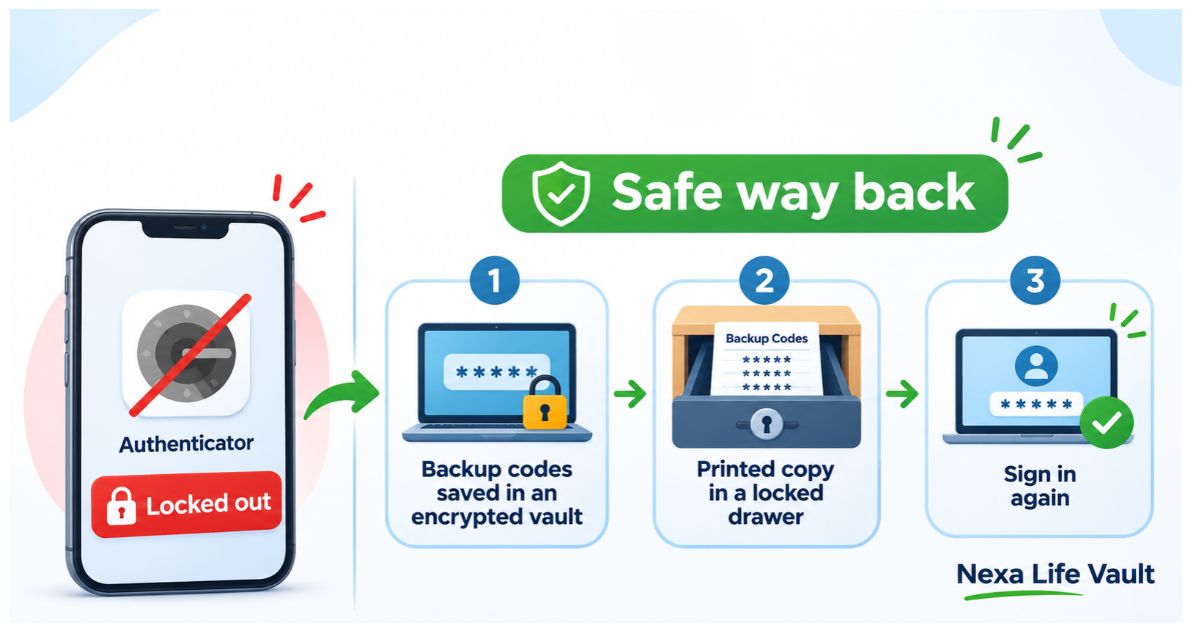
Save your 2FA backup codes in two places: one encrypted digital copy, such as a secure vault, and one printed copy kept somewhere locked at home. Never keep them in your email inbox, a screenshot in your gallery, or a chat with yourself. Store them before you need them, and update them whenever you regenerate codes.
Two-factor authentication protects your Gmail, bank app and social accounts. But it has a catch. If your phone is lost, stolen or reset, you can be locked out of the very accounts you were trying to protect. Backup codes and recovery keys are your way back in. Most people download them once, forget them, and cannot find them when it matters. This guide shows you how to save them, where to keep them, and what to do if the worst happens.
What are 2FA backup codes and why do they matter?
A backup code is a short, one-time password that your account gives you when you switch on two-step verification. If you cannot get a code from your authenticator app or SMS, you type one of these instead.
Think of them as the spare key to your house. You hope you never use it, but you need to know exactly where it is the day you get locked out.
Different services use different names. Google calls them backup codes. Other apps may give you a long recovery key or a setup key instead. They all do the same job: prove it is really you when your normal method fails.
What is the difference between backup codes, recovery keys and recovery options?
| Item | What it looks like | What it is used for | Can you reuse it? |
|---|---|---|---|
| Backup codes | A list of short codes | Signing in when you cannot get your usual code | Usually once per code |
| Recovery key | One long string of letters and numbers | Regaining access, or unlocking data in some services | Depends on the service |
| Authenticator setup key | Text shown next to the QR code | Adding the account to a new authenticator app | Yes, until you reset 2FA |
| Recovery email or phone number | An email address or mobile number | Receiving a reset link or code | Yes |
Rules differ from one service to another, so read the screen where your account shows these items.
How do you save 2FA backup codes step by step?
- Open your account's security settings. Look for 2-step verification, then find the backup codes or recovery key option. The exact menu names can change, so follow what you see on screen.
- Generate a fresh set. In many services, creating a new set cancels the old one. Check the message on screen so you do not throw away codes you were still relying on.
- Copy them exactly. Do not retype from memory. Note the account name and the date next to them, for example "Gmail (personal), codes made Nov 2026".
- Save one encrypted digital copy. Use a secure vault or a password manager that is protected by its own strong login. Keep it separate from the phone that holds your authenticator app.
- Make one printed or handwritten copy. Keep it in a locked almirah, drawer or home safe. Do not keep it in your wallet or bag, where it can be lost with your phone.
- Mark each code you use. Cross out a code after you use it so you know how many are left.
- Replace the saved copies when you regenerate. Delete the old digital file and shred the old paper. Old codes lying around only cause confusion.
If your passwords are scattered across notebooks and notes apps too, fix that first. Our guide on how to manage passwords securely and protect your accounts covers it.
Where should you store recovery codes?
The best place is one you can reach without your phone, but that a stranger cannot reach at all. Here is how common options compare.
| Where | Verdict | Why |
|---|---|---|
| Encrypted vault with its own login | Good | Access-controlled and separate from your phone |
| Printed copy in a locked drawer or almirah | Good | Works with no phone, no internet and no battery |
| Password manager secure note | Good | Fine if the manager has a strong master password and its own 2FA |
| Bank locker | Acceptable | Very safe, but slow to reach in an emergency |
| Email inbox or drafts | Bad | If someone breaks into your email, they get the codes too |
| Screenshot in phone gallery | Bad | Lose the phone, lose the codes. Galleries may also sync to the cloud |
| "Message yourself" chat | Bad | Sits on the same phone and may be backed up elsewhere |
| Sticky note on a desk or monitor | Bad | Anyone who walks past can read it |
What are the do's and don'ts for 2FA backup codes?
Do
- Keep at least two copies in two different places.
- Label each set with the account name and date.
- Review your codes after you change your phone or SIM.
- Let one trusted family member know where the paper copy is kept, without sharing the codes themselves.
- Turn on a second recovery option, such as a recovery email, where the service offers it.
Don't
- Don't email codes to yourself or post them in family WhatsApp groups.
- Don't save them only on the phone that has your authenticator app.
- Don't share a code with anyone who calls or messages you, even if they claim to be from the bank or the service. Real support teams do not ask for these.
- Don't keep old sets after you generate new ones.
- Don't wait until you are locked out to look for them.
Common mistake: Saving backup codes as a screenshot on the same phone that runs your authenticator app. When that phone is lost or reset, you lose both the app and the codes in one go. Keep the codes somewhere that does not depend on that phone.
What should you do if you lose your authenticator app?
A lost authenticator app is stressful, but it is fixable if you act in the right order.
- Stay signed in where you can. If any laptop, tablet or old phone is still signed in to the account, do not log out. It may be your easiest route to the security settings.
- Use a backup code. At the sign-in screen, choose another way to verify and enter one unused code.
- Move 2FA to your new phone. Once you are in, open security settings, remove the old authenticator, and set up the new one. Then generate fresh backup codes.
- Repeat for every account. Banks, email, shopping, social media and work tools each need their own re-setup.
- Secure your phone number. If the lost phone also had your SIM, contact your mobile operator to block it and get a replacement. Also contact your bank so they can restrict mobile banking and UPI on the lost device.
Some authenticator apps offer encrypted backup or sync to a cloud account, and some do not. Check what your app offers before you change phones, and do not rely on it as your only safety net.
How does Google account recovery work if you have no backup codes?
Google account recovery is a process where Google asks you questions to confirm that the account is yours. It may ask for an old password, a recovery email or phone number, or details about when you created the account.
A few habits improve your chances:
- Try from a phone or laptop you have signed in on before.
- Use the same network and location you normally use, such as your home Wi-Fi.
- Answer as accurately as you can. A close guess is better than skipping the question.
- Be patient. Recovery can take time and is not guaranteed.
Verify the current steps with the official source, Google Account Help, before acting, because the process can change.
This is general information, not legal, tax or financial advice.
What does a real lockout look like?
Here is a simple example. Rohan in Pune upgrades his phone during a festive sale and hands over the old one for an exchange after a factory reset. He assumes his authenticator app will "just move over". It does not. His Gmail asks for a code he cannot generate, and he never saved backup codes. He spends several days on account recovery, unable to use his email for OTPs and bills. Ten minutes of saving codes earlier would have avoided the whole problem.
How often should you check your recovery codes?
Check them at three moments: when you change your phone or SIM, after you use any code, and once or twice a year as a routine. Open your saved copy, confirm you can read it, and confirm the labels still match your accounts. If anything looks old or unclear, generate a new set and replace it.
How Nexa Life Vault helps
Recovery codes are a digital document, and they belong with your other digital records. The Digital Vault in Nexa Life Vault is built for this kind of information: account details, recovery keys and backup codes, kept in one organised place instead of across screenshots and notes.
Your files are protected with AES-256-GCM encryption, with a separate key for each file. Files are decrypted only in server memory when an authorised request is made.
You can also use Smart Document Alerts to set a reminder to review and refresh your codes, the same way you would track a renewal date. That way, the habit does not depend on your memory.
Conclusion
Your 2FA backup codes are only useful if you can find them on your worst day. Generate them now, keep one encrypted digital copy and one locked paper copy, and review them whenever you change phones. It takes about ten minutes. Store recovery info securely in your Digital Vault today, so a lost phone stays an inconvenience instead of a lockout.
Frequently Asked Questions
Ayush Singh
Software Engineer & Security Systems Writer
Software engineer and tech writer focused on digital security, system reliability, and user-friendly document organization workflows.
Share this post
Comments (0)
No comments yet. Be the first to comment!