How to Share Passwords and Logins With Family Securely
The safest way to share passwords with family is to use a password manager's sharing feature for everyday logins, and keep a separate emergency access plan for serious situations. Never send passwords over WhatsApp or SMS, and never share bank PINs or OTPs. Give each person only the access they need.
Your father can't log in to the electricity bill portal. Your spouse needs the broadband account while you travel. Or something happens to you, and nobody knows how to open your email. Most families handle this with a WhatsApp message or a diary page, and both work until they don't. This article compares three ways to share passwords with family, from risky to best, and shows how to arrange emergency access without handing over everything.
Why is sharing logins over WhatsApp or SMS risky?
Convenience is the only thing a chat message has going for it. After you hit send, you lose control of the password.
Even if a chat app protects messages while they travel, the text still sits in the chat history. It also sits in phone backups and on every device that holds the conversation. Phones get lost, sold, sent for repair or handed to children for games. One careless moment on any of those phones exposes the password.
Screenshots are no better. They land in photo galleries, which are often synced to cloud accounts that other people can open.
Which details should you never share, even with family?
Some details are too sensitive to pass around, however much you trust the person asking:
- One-time passwords (OTPs) sent to your mobile number
- UPI PIN and ATM or debit card PIN
- Card CVV and expiry date
- Net banking passwords
Banks regularly warn customers not to share these with anyone. If a parent or spouse needs to manage money, ask your bank about joint accounts or other authorised arrangements. Do not hand over your personal banking login. Verify the options with your bank before acting.
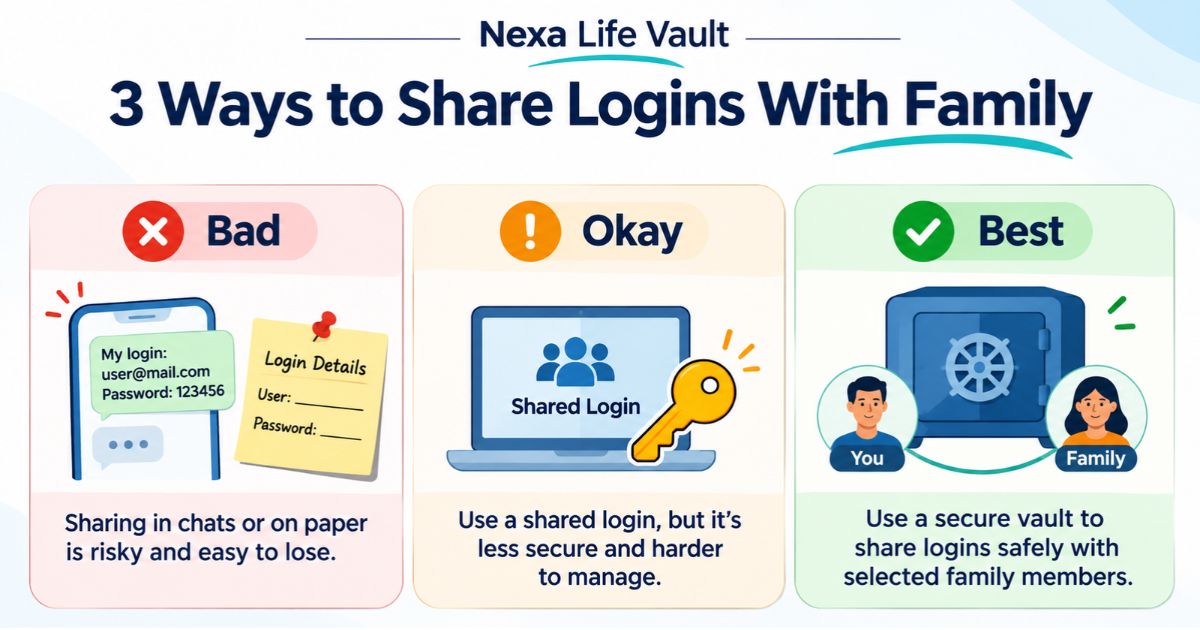
What are the best ways to share logins? Bad, okay and best compared
Here is how the three common methods stack up.
| Method | Examples | Main risk | Control over access | Verdict |
|---|---|---|---|---|
| 1. Messages and notes | WhatsApp, SMS, screenshot, diary page, unlocked notes app | Copies stay on phones, backups and paper | None once sent | Bad |
| 2. Password manager sharing | Shared logins or a family plan | Setup gaps, lost master password, logins only | Per login, can usually be removed | Okay |
| 3. Controlled access | Password manager plus written emergency plan and a named person | Plan goes out of date if you never review it | Per person, per purpose | Best |
Method 1 (bad): messages, notes and paper
This is the WhatsApp text, the Excel sheet on a shared drive, the unlocked Notes entry and the diary page. It's quick, which is exactly why so many people use it.
The problem is that you can't take it back or see who read it. A diary can be photographed or lost. Reusing one password across accounts makes things worse, because a single leak opens many doors.
Method 2 (okay): password manager sharing
A good password manager keeps each login in an encrypted store. It lets you share chosen items with chosen people. Many offer family plans where everyone gets their own account.
This is a big step up from chat messages. You share one login instead of a whole list, and you can usually stop sharing later.
It has limits. Everyone has to set it up and use it. It covers logins, not the papers behind them, such as policy documents or loan statements. And if the master password is lost, the family may be locked out. Check each product's own recovery options.
Method 3 (best): controlled access
The best approach is a pattern, not a single tool. You share everyday logins through a password manager. You keep serious accounts under a written emergency plan. Named people get access only to what they need.
Three rules keep it tidy:
- Least access: each person gets only what their role needs.
- Known access: you know who has what, and you wrote it down.
- Removable access: you can take it away when things change.
Pro tip: Sort your accounts into three buckets before sharing anything. "Daily" covers Wi-Fi, streaming and utility portals. "Emergency only" covers email, cloud storage, insurance and bank accounts. "Never shared" covers UPI PIN, card PINs and OTPs. Only the first bucket goes into everyday sharing.
How do you share passwords with family safely, step by step?
Set aside an hour with your family and work through this list.
- List the accounts that matter. Start with your email, mobile number account, cloud storage, bank, insurance, utility bills and subscriptions.
- Sort them into the three buckets. Daily, emergency only and never shared.
- Secure your email and phone number first. Your email resets almost every other account, and OTPs go to your registered mobile number. If these two fall into the wrong hands, everything else follows.
- Choose a password manager with sharing. Check that it lets you share single items and remove access later.
- Make every password unique. If your Wi-Fi password matches your email password, sharing one means sharing both.
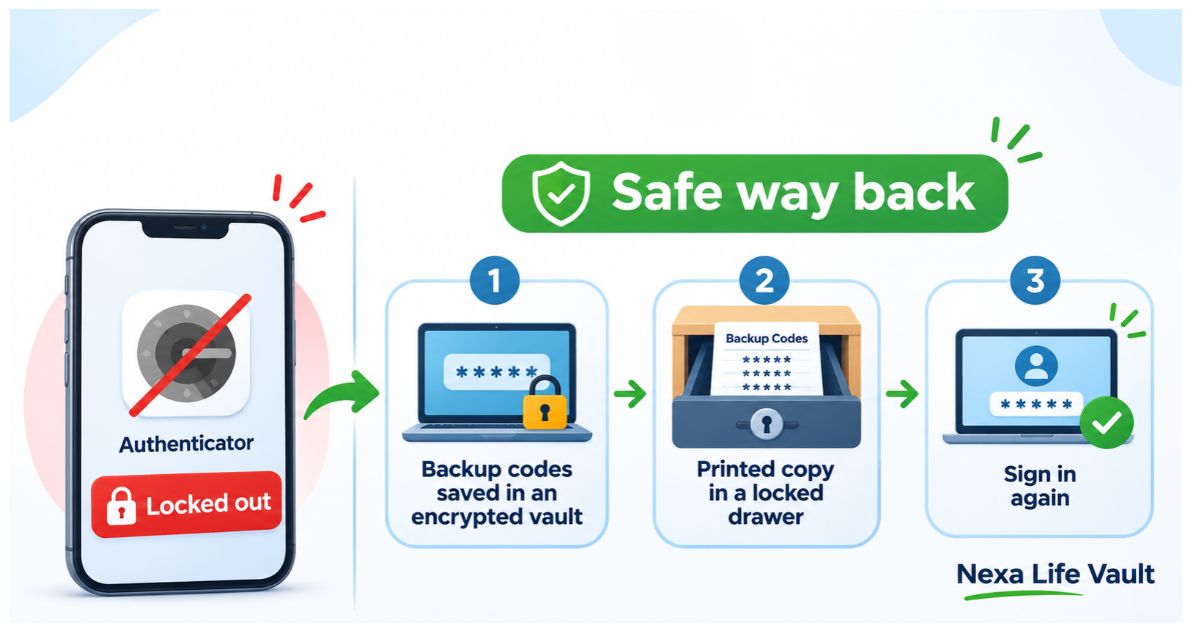
- Turn on two-step verification and decide where backup codes live. Note who can reach them in an emergency.
- Share item by item. Give your mother the broadband login, not your whole vault.
- Review twice a year. Also review after any change of phone number, email or device.
How do you arrange emergency access to accounts?
Emergency access to accounts needs planning, because family members usually can't open your accounts after an accident or sudden illness. Here is a simple example. Your brother handles your parents' health insurance, and the renewal reminder goes to your email. If you are unreachable for a week and nobody can open that inbox, the policy can lapse.
Build three layers:
- Platform tools. Some providers let you name someone who can request access later. Google has Inactive Account Manager and Apple has Legacy Contact. Some password managers also offer emergency access. Read each provider's help page for the current steps.
- A written access guide. List your key accounts, which email and mobile number each one uses, where backup codes are kept, and which accounts to deal with first. Don't put master passwords or PINs in this guide.
- A named person. Pick one trusted adult who knows the guide exists and can reach it when needed. Tell them in advance.
A nominee on a bank account, insurance policy or mutual fund usually deals with the money or benefit. That is not the same as access to your online login. Rules differ by institution and by situation, so verify with the official source (the bank, insurer or provider) before acting.
Common mistake: Writing the master password, the PIN and the access guide together on one piece of paper or in one note. If someone finds it, they get everything. Keep the guide separate from any secret that unlocks accounts, and update the guide whenever you change a phone number or email.
How Nexa Life Vault helps
The Digital Vault is built for the records of your online life. It's a good home for your account access guide: which email and mobile number are linked to which services, where your backup codes are kept, and which accounts the family should deal with first. Use it alongside your password manager.
The Nominee & Executor Access feature lets you decide who can reach those records. That means the right person is not digging through old chats when it matters. Files in Digital Vault are protected with AES-256-GCM encryption and per-file keys, and are decrypted only in server memory for authorised requests. For the papers behind your accounts, see how to share family documents safely.
Conclusion
To share passwords with family without losing control, split your accounts into daily, emergency-only and never-shared. Use a password manager for the first group. Use a written plan and one named person for the second. Keep the third in your head. Review it whenever you change a phone number or email. Ready to set it up? Share with controlled access using Digital Vault and Nominee & Executor Access.
This is general information, not legal, tax or financial advice. Features and rules of banks and online services change, so check the official source before acting.
Frequently Asked Questions
Ayush Singh
Software Engineer & Security Systems Writer
Software engineer and tech writer focused on digital security, system reliability, and user-friendly document organization workflows.
Share this post
Comments (0)
No comments yet. Be the first to comment!