How to Backup Your Important Digital Files Safely
Learn how to backup your important digital files using cloud storage, offline backups, and proven security strategies. Protect valuable information from data loss, device failures, and cyber threats.

Most people don't think about backups until they lose something important. A computer crash, accidental deletion, malware attack, or lost device can result in the permanent loss of valuable information in just a few moments.
Whether it's family photos, financial records, business documents, or personal files, losing digital information can be frustrating and sometimes costly. That's why it's important to backup your important digital files before problems occur.
A reliable backup strategy helps protect your data, reduces the risk of permanent loss, and ensures that important information remains accessible when you need it most.
In this guide, you'll learn why backups matter, which files should be protected, and the best ways to create a secure backup system for your digital life.
Backing up your files is important, but managing the accounts connected to those backups is equally essential. Discover practical ways to improve account security and organization in our guide on Online Account Management Tips for Better Security.
What Can Cause Digital Data Loss?
Many people assume their files are safe as long as they are stored on a computer, smartphone, or cloud platform. Unfortunately, digital data can be lost in several ways, often without warning.
Understanding the most common causes of data loss can help you appreciate the importance of maintaining reliable backups.
Device Failure
Computers, smartphones, tablets, and external drives can fail unexpectedly. Hardware components wear out over time, and storage devices can become damaged without warning.
If important files exist only on a single device, a hardware failure could result in permanent data loss.
Accidental Deletion
Human error is one of the most common reasons for lost data. Files may be accidentally deleted, overwritten, or removed during routine cleanup activities.
Without backups, recovering these files may be difficult or impossible.
Malware and Ransomware Attacks
Cybercriminals often use malicious software to steal, encrypt, or destroy data. Ransomware attacks can lock users out of their own files until a payment is made.
Having secure backup copies helps ensure that important information remains available even if your primary files are compromised.
Lost or Stolen Devices
Laptops, smartphones, tablets, and portable storage devices can be lost or stolen. When this happens, important files may disappear along with the device.
Backups provide a safety net that allows you to restore your information to a new device if necessary.
Cloud Account Problems
Cloud storage is valuable, but it should not be your only protection. Account access issues, accidental deletions, synchronization errors, or compromised credentials can still result in lost data.
Maintaining additional backup copies helps reduce dependence on a single storage location.
Natural Disasters and Unexpected Events
Floods, fires, power surges, and other unexpected events can damage devices and storage systems. Physical damage can make recovering files extremely difficult.
A well-planned backup strategy helps protect important information from both digital and physical threats.
Understanding these risks highlights why backups are an essential part of digital security. The next step is identifying which files deserve the highest level of protection.
Which Digital Files Should You Back Up?
Not every file on your device is equally important. While some files can be downloaded again or recreated, others may be difficult, expensive, or even impossible to replace. Knowing which files deserve priority can help you build a more effective backup strategy.
When planning to backup your important digital files, focus first on information that has personal, financial, legal, or business value.
Personal Documents
Personal documents often contain information that would be time-consuming to recover if lost. These files should be among the first items included in your backup plan.
Examples include:
- Identity documents
- Birth certificates
- Passport scans
- Educational certificates
- Insurance documents
- Medical records
Keeping backup copies of these documents can make it easier to access important information whenever needed.
Photos and Videos
Family photos, personal videos, and memorable moments are often irreplaceable. Unlike many other files, these memories cannot simply be recreated if they are lost.
Regular backups help ensure that years of personal memories remain protected from device failures, accidental deletion, or theft.
Many people choose to maintain both cloud-based and offline backups for additional protection.
Financial Records
Financial documents are important for budgeting, tax preparation, account verification, and long-term record keeping.
Examples include:
- Bank statements
- Tax documents
- Investment records
- Payment receipts
- Insurance policies
- Loan documents
Having backup copies of financial records can save significant time and stress if original files become unavailable.
Business Files and Work Documents
Business information often represents years of work and valuable intellectual property. Losing important business files can disrupt operations and lead to financial losses.
Businesses should regularly back up:
- Contracts and agreements
- Customer records
- Project files
- Financial reports
- Marketing materials
- Operational documents
Maintaining secure backups helps support business continuity and reduces the impact of unexpected data loss.
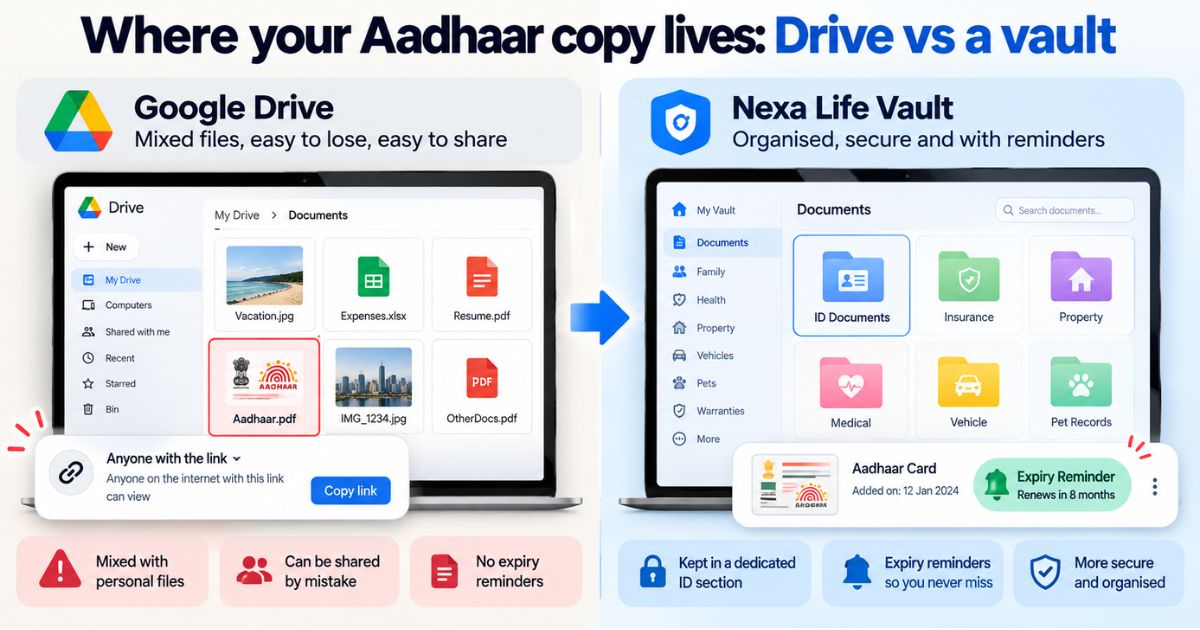
Password Recovery and Account Information
Many online accounts depend on recovery information to restore access if login credentials are forgotten or compromised.
Important information may include:
- Recovery email addresses
- Backup authentication codes
- Account recovery instructions
- Emergency contact information
These details should be stored securely and included as part of your overall backup strategy.
Your Most Valuable Digital Assets
Many of the files mentioned above are considered valuable digital assets because they contain important personal, financial, or business information.
If you're unsure which files deserve the highest level of protection, read our guide on Digital Assets You Should Protect.
By identifying your most valuable files and backing them up regularly, you can significantly reduce the risk of losing information that matters most.
Best Ways to Back Up Digital Files
Once you've identified the files that matter most, the next step is choosing the right backup method. The best backup strategy often combines multiple storage options to reduce the risk of data loss and improve recovery options.
There is no single solution that works for everyone. The ideal approach depends on the type of files you store, how often they change, and how quickly you may need to recover them.
Fortunately, several reliable backup methods can help you protect important information and keep it accessible when needed.
Use Cloud Backups
Cloud backups are one of the most convenient ways to protect digital files. Instead of storing information on a single device, cloud services create copies that can be accessed from multiple locations.
Benefits of cloud backups include:
- Automatic synchronization
- Remote access to files
- Protection against device failure
- Easy file recovery
- Scalable storage options
Cloud backups are particularly useful for important documents, photos, videos, and business records that need to remain accessible across different devices.
To improve security, it's important to follow proper cloud security practices. Learn more in our guide on Cloud Storage Best Practices.
Use External Hard Drives
External hard drives provide an additional layer of protection by keeping copies of important files outside your primary device.
Many people use external drives for:
- Photo libraries
- Video archives
- Business documents
- Large project files
- System backups
External drives can store large amounts of data and provide quick access to backup files when needed.
For maximum protection, keep external drives in a secure location and disconnect them when they are not actively being used.
Maintain Offline Backup Copies
Offline backups provide protection against cyber threats that may affect internet-connected devices.
Examples of offline storage include:
- External hard drives
- Encrypted USB drives
- Offline backup systems
- Secure archival storage devices
Because these backups are not continuously connected to the internet, they are less vulnerable to ransomware attacks and unauthorized access.
Enable Automatic Backups
One of the biggest challenges with backups is consistency. Many people intend to back up their files but forget to do so regularly.
Automatic backup systems help solve this problem by creating backup copies on a scheduled basis.
Advantages of automatic backups include:
- Reduced risk of human error
- Consistent protection
- Less manual effort
- More up-to-date backup copies
Whether you use cloud storage or local backup software, automation can help ensure important files are protected without relying on memory.
Follow the 3-2-1 Backup Rule
Many cybersecurity professionals recommend following the 3-2-1 backup rule because it provides strong protection against multiple types of data loss.
The rule suggests:
- Keep 3 copies of important files
- Use 2 different storage methods
- Store 1 backup copy in a separate location
For example, you might keep the original file on your computer, a backup in cloud storage, and another copy on an external hard drive.
This approach ensures that if one storage method fails, additional copies remain available.
Protect Backup Accounts and Storage Systems
Your backups are only valuable if they remain secure and accessible. Backup accounts should be protected with strong passwords, multi-factor authentication, and secure recovery options.
Many backup systems contain sensitive information that deserves the same level of protection as the original files.
If you're working to improve account security, read our guide on Manage Passwords Securely.
By combining cloud storage, offline backups, automation, and strong security practices, you can create a reliable backup strategy that protects your most valuable digital information.
Backup Best Practices for Long-Term Protection
Creating backup copies of important files is a great start, but maintaining an effective backup strategy requires ongoing attention. Backups should be reliable, accessible, and regularly updated to ensure they provide protection when needed.
Following a few simple best practices can help you avoid common backup mistakes and improve the security of your digital information.
Create a Regular Backup Schedule
One of the most common reasons backups fail is inconsistency. Many people back up their files once and then forget to update them for months.
Creating a regular backup schedule helps ensure your backup copies contain the latest versions of important files.
The ideal schedule depends on how frequently your information changes. For example:
- Daily backups for active business files
- Weekly backups for personal documents
- Monthly reviews of archived information
Regular backups reduce the amount of information that could be lost if an unexpected issue occurs.
Test Your Backups Periodically
A backup is only useful if it can be successfully restored. Unfortunately, many people never test their backups until they experience data loss.
Periodically verify that:
- Backup files are accessible
- Documents open correctly
- Recovery processes work as expected
- Important files are included in backup systems
Testing backups helps identify problems before an emergency occurs.
Store Backup Copies Securely
Backup files often contain sensitive information, making them valuable targets for cybercriminals.
To improve security:
- Use strong passwords for backup accounts
- Enable multi-factor authentication
- Encrypt sensitive backup files
- Limit access to authorized individuals
- Keep offline backups in secure locations
Protecting backups is just as important as protecting the original files.
Keep Multiple Backup Copies
Relying on a single backup location creates unnecessary risk. If that backup becomes unavailable, your recovery options may be limited.
Maintaining multiple copies in different locations provides greater protection against hardware failures, cyberattacks, and accidental deletion.
A combination of cloud storage and offline backups often provides the best balance of convenience and security.
Review and Update Your Backup Strategy
Your backup needs may change over time as you create new files, use additional devices, or adopt new technologies.
Review your backup strategy periodically to ensure it continues to meet your needs.
Consider updating your backup plan when:
- You purchase new devices
- You start storing new types of files
- Your storage requirements increase
- Your security needs change
Regular reviews help keep your backup system effective and aligned with your current digital environment.
Combine Backups with Strong Security Practices
Backups work best when they are part of a broader digital security strategy. Strong passwords, secure cloud storage, account protection, and safe online habits all contribute to better protection for important files.
By combining these measures, you can reduce risks while ensuring critical information remains available when needed.
Conclusion
Digital data loss can happen unexpectedly, whether it's caused by hardware failures, accidental deletion, cyberattacks, or lost devices. Having a reliable backup strategy helps protect important information and reduces the impact of these events.
When you backup your important digital files regularly, follow the 3-2-1 backup rule, use secure storage methods, and test your backups periodically, you create a stronger defense against data loss.
From personal documents and family photos to financial records and business files, every valuable digital asset deserves proper protection.
For more resources on protecting online accounts, digital assets, and important records, visit our Digital Vault page.
Frequently Asked Questions
cmp6hs57y000oc2bxnj5buqzv
Editorial Contributor
Author and technology contributor at NexaLifeVault.
Share this post
Comments (0)
No comments yet. Be the first to comment!